The Xbox Series X Controller stands out with its blend of advanced technology and ergonomic design, making it a top choice for gamers. One of its most notable features is the improved grip, which provides a more comfortable and secure hold during extended gaming sessions. The textured surfaces on the triggers and bumpers help prevent slipping, ensuring that players remain in control even during the most intense moments.
Another significant upgrade is the introduction of the new Share button, which enables gamers to easily capture and share their favorite gaming moments. Whether it’s a thrilling victory or a hilarious in-game mishap, with just a press of this button, users can quickly take screenshots or record video clips to share with friends or on social media. This feature enhances connectivity within the gaming community, allowing for shared experiences across platforms.
The Xbox Series X Controller also boasts low-latency performance with its advanced wireless connectivity. Gamers can enjoy seamless gameplay without the hassle of lag, which can often frustrate online matches. Additionally, the controller is compatible with both Xbox consoles and Windows PCs, providing versatility for those who switch between gaming systems. Its compatibility and ease of use make it a practical choice for a wide range of gamers.
Finally, one of the standout features of the Xbox Series X Controller is its customizable options through the Xbox Accessories app. Players can remap buttons, adjust sensitivity settings, and create profiles tailored to specific games or play styles. This level of customization not only enhances gameplay but also empowers players to create their ideal gaming experience.
Setup and Connection Made Easy
Setting up your Xbox Series X controller is a breeze, ensuring you can jump straight into your gaming without any hassle. Whether you're connecting it to your console or using it with other devices, the process is user-friendly. To start, make sure your controller is charged or has fresh batteries. Once you're powered up, it’s time to connect!
If you’re linking your controller to the Xbox Series X, simply press the pairing button on the console, which is located on the front right side. Next, press and hold the pairing button on your controller, found near the top. You'll see the Xbox button flash rapidly, indicating that it’s looking for a connection. In just a few moments, the lights will settle, and you’re ready to play!
For those who want to pair their controller with a PC, the process is just as simple. You can connect it via Bluetooth or with a USB cable. For Bluetooth, make sure your PC is discoverable, then press the pairing button on your controller. When the Xbox button starts blinking, look for the controller in your device list and select it. If you prefer wired, just plug in the USB cable, and you’re good to go!
Finally, for mobile gaming aficionados, the Xbox Series X controller can easily connect to smartphones and tablets. Just follow the same Bluetooth pairing method as with your PC, and you’ll be gaming on the go in no time. With such straightforward setup options, you can focus on enjoying your games and less on the technicalities.
Tips for Customizing Your Controller
Customizing your Xbox Series X controller can elevate your gaming experience and make it truly yours. Here are some helpful tips to get you started on personalizing your controller setup according to your preferences.
First, consider using the Xbox Accessories app. This application allows you to remap buttons and adjust sensitivity settings for your sticks. You can create multiple profiles for different games, letting you switch between them seamlessly. Spend some time experimenting with various layouts to discover what feels best for you during gameplay.
Next, think about adding grips or skins to your controller. These not only enhance the look but also provide better traction and comfort during intense gaming sessions. You can find a variety of designs and materials, from rubberized grips to custom skins with your favorite colors or characters.
Don’t forget to explore the world of controller triggers and thumbsticks! Many third-party companies offer enhanced triggers and thumbsticks that provide better responsiveness and ergonomics. Some come with different heights and shapes, allowing you to find the optimal fit for your play style.
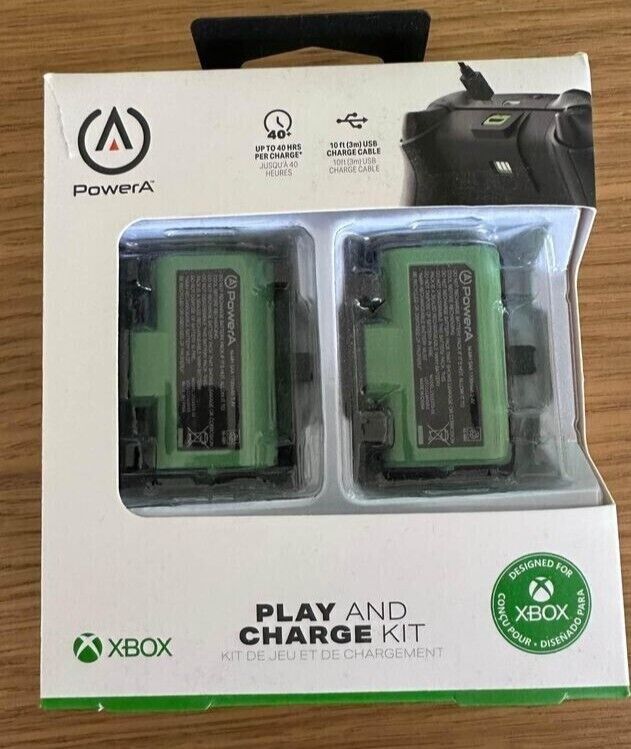
Lastly, accessorizing is an excellent way to customize your controller. Consider investing in a charging station, carrying case, or even custom thumb grips. Each accessory can enhance your comfort and convenience, making your gaming setup feel cohesive and tailored to your needs.
Troubleshooting Common Controller Issues
Experiencing issues with your Xbox Series X controller can be frustrating, but many common problems have straightforward solutions. Whether you're facing connectivity issues, input lag, or unresponsive buttons, we've got you covered. Here are some tips to help you troubleshoot and get back to gaming in no time.
One of the most common problems users encounter is Bluetooth connectivity. If your controller isn't connecting, first ensure that it is charged. If the power level is good, try unpairing and repairing the controller. To do this, hold the pairing button on the controller and the Xbox console until they find each other again. If you're using a PC, go to your Bluetooth settings and remove the controller before reconnecting.
If your controller is paired but you're experiencing input lag or unresponsiveness, check the batteries or charging cable. Low battery levels can cause delays in response time, so switch out the batteries or ensure your controller is charged to rule this out. Also, make sure that any interference, such as other wireless devices or physical barriers, is minimized as they can affect connectivity.
Another common issue is sticking buttons or joysticks. This can often be solved by cleaning your controller. Use a soft cloth slightly dampened with isopropyl alcohol to clean around the buttons and sticks. Avoid getting any liquid inside the controller. If the problem persists, you may need to consider a more in-depth repair or replacement, especially if the controller is still under warranty.
Lastly, if none of these solutions work, consider resetting your controller. To reset, hold the pairing button for approximately 10 seconds. This can clear minor glitches and restore your controller to a better working condition. If issues continue after this, it may be time to contact Xbox support for further assistance or a potential replacement.